Giving a homeowner money back with a credit
A credit is how you record money going back to a homeowner: a refund, an overpayment you returned, or a payment you are taking back because it was entered by mistake.
On this page
It is a negative payment. It sits in the Received table on the project's Payments tab, beside the payments it offsets, shown with a minus sign and the fixed label Credit. Creating one takes Create on Payments.
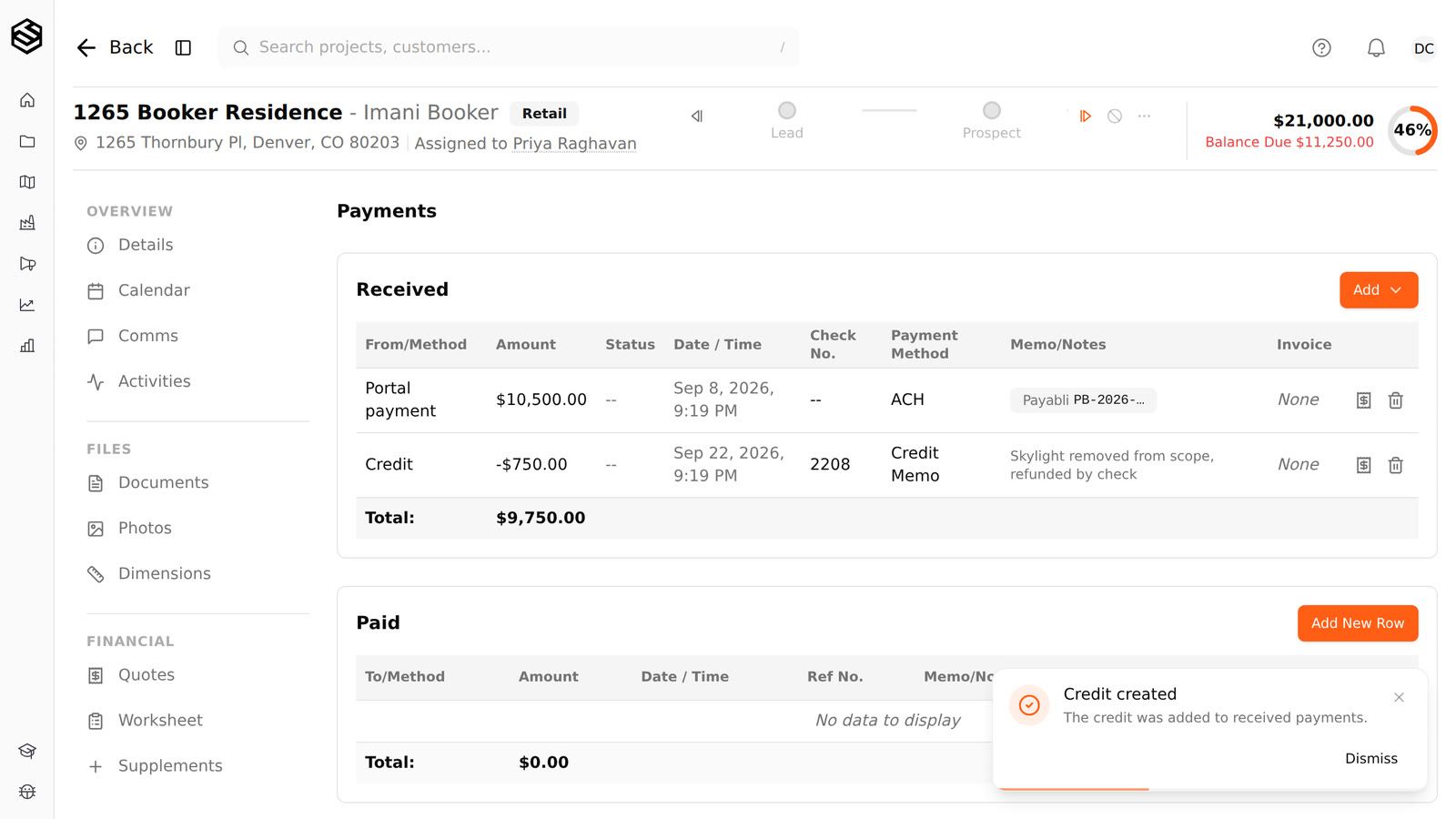
The balance due goes up
The balance due goes up by the credit amount. Balance due is what the job is worth minus everything received, and a credit lowers what was received. On a $21,000 job with $10,500 paid, a $750 credit leaves $9,750 received and $11,250 due. On a job the homeowner overpaid by $1,200, a $1,200 credit brings the balance back to exactly zero.
To lower what the homeowner owes
To lower what the homeowner owes, do not use a credit, because a credit makes them owe more. Take the amount off what the job is worth instead, with a line in a deduction section such as Discount on the project's Worksheet tab. That lowers the job value the balance is measured against.
Correcting a credit
Correcting a credit is done with the pencil on its row, which takes Modify on Payments. The amount has to stay negative, and the balance due moves by the difference. The change shows in the project activity feed.
Step by step
- Open the project and go to its Payments tab. Where: the project's Payments tab. Needs View on Payments.
- In the Received table, press Add and choose New credit. Needs Create on Payments.
- Type the amount with a minus sign, for example -750. A positive amount or zero is refused and the button stays off. Pick the payment method (Credit Memo, Journal Entry or Other, unless your admin has changed the list), and add the check number of a refund check and a memo saying why.
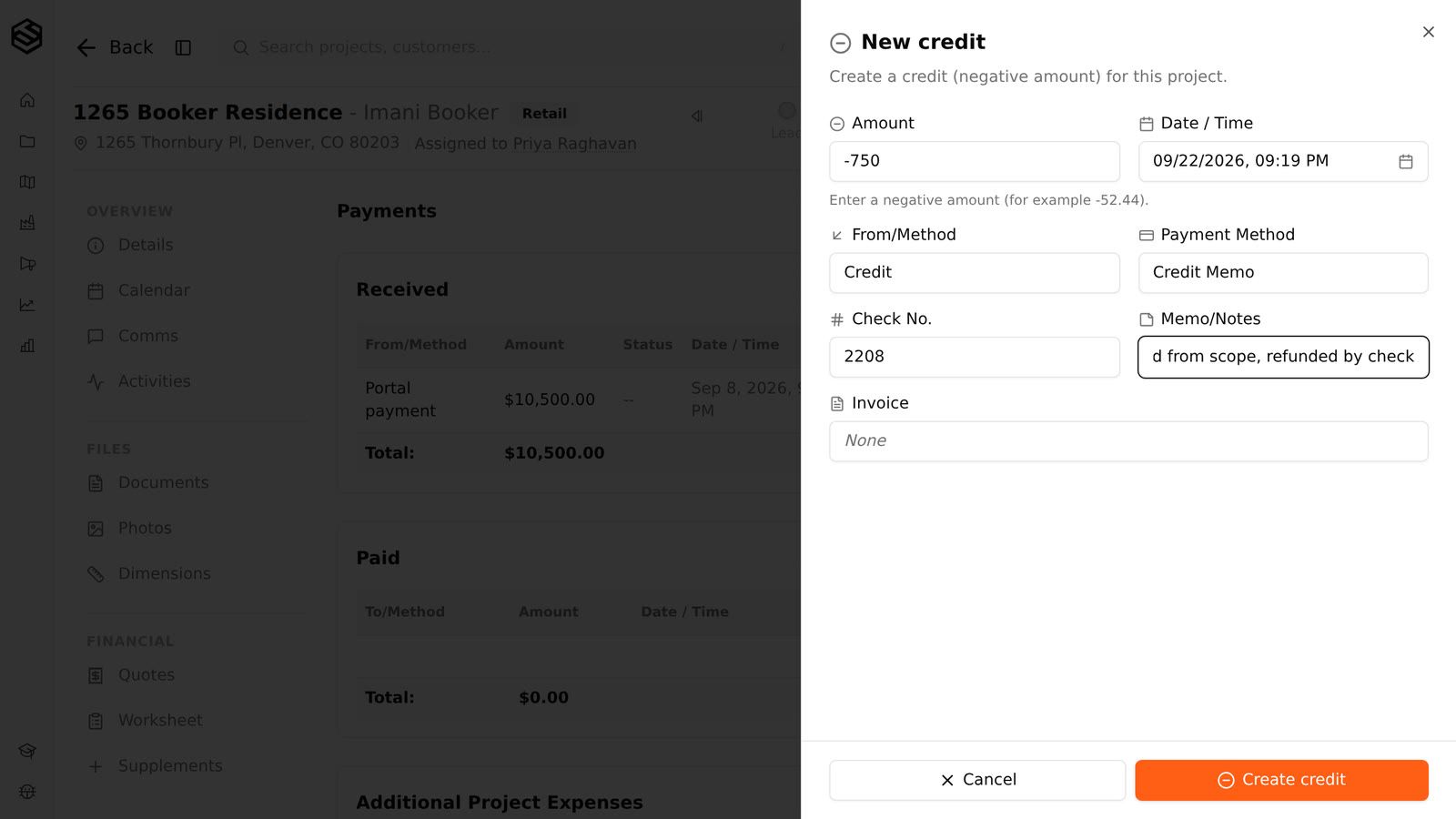
- If the credit belongs to a particular invoice, pick it under Invoice so it is filed against that invoice; otherwise leave it on None.
- Press Create credit. The credit appears under Received with a minus sign, the received total drops and the balance due rises by the same amount.
Who can do this
Access in Trussi is a capability granted to a role. If one of these is missing from your role, an account admin can grant it; see roles, permissions and why something is hidden.
- Create on Payments
- Modify on Payments
- View on Payments
Was this article helpful?
Related articles
- Recording a check or cash payment by handA payment that did not go through Trussi's online payments, such as a check handed over at signing or cash on completion, is recorded by hand on the project's Payments tab.
- Returned payments and chargebacksWhen a customer's payment bounces or is disputed, Trussi restores the balance automatically and tells your office what to do next.
- Worksheets and how they differ from quotesA worksheet is the internal costing document on the project's Worksheet tab.
- Invoices, payments and accountingThe project's Payments tab holds payments received, payments paid, additional expenses, and the project's invoices, with received payments able to be tied to a specific invoice.